
ServiceNow
111 min read3 viewsServiceNow Discovery Troubleshooting: 6 Common Errors, Fixes and Interview Questions
By TechPratham TeamPublished October 17, 2026Updated October 17, 2026

You ran a Discovery schedule, expected new configuration items (CIs) to appear in the CMDB, but nothing showed up. Maybe the run says "Started" for too long, the MID Server is not responding, or the scan finishes without identifying the target device.
These problems are common in ServiceNow environments. The challenge is not simply knowing which button to click; it is identifying where the Discovery process failed and confirming the root cause before changing any configuration.
This guide explains servicenow discovery troubleshooting through six common errors, practical fixes, prevention tips, and interview-ready answers. Whether you are a junior administrator resolving a live issue or a fresher preparing for a ServiceNow ITOM interview, you will learn how to investigate failures systematically instead of guessing.
How ServiceNow Discovery Works
ServiceNow Discovery identifies supported devices and infrastructure, collects technical information, and updates the Configuration Management Database (CMDB). Understanding its workflow makes troubleshooting easier.
The process generally follows these stages:
Discovery Schedule: Defines when Discovery runs and which targets or IP ranges it scans.
MID Server: Communicates with the ServiceNow instance and performs supported Discovery operations against target infrastructure.
Probes and ECC Queue: Discovery requests and results travel between the instance and MID Server through the ECC Queue.
Sensors: Process returned results and extract useful information.
Identification and Reconciliation Engine (IRE): Evaluates incoming CI data against identification and reconciliation rules.
CMDB: Stores the resulting configuration data.
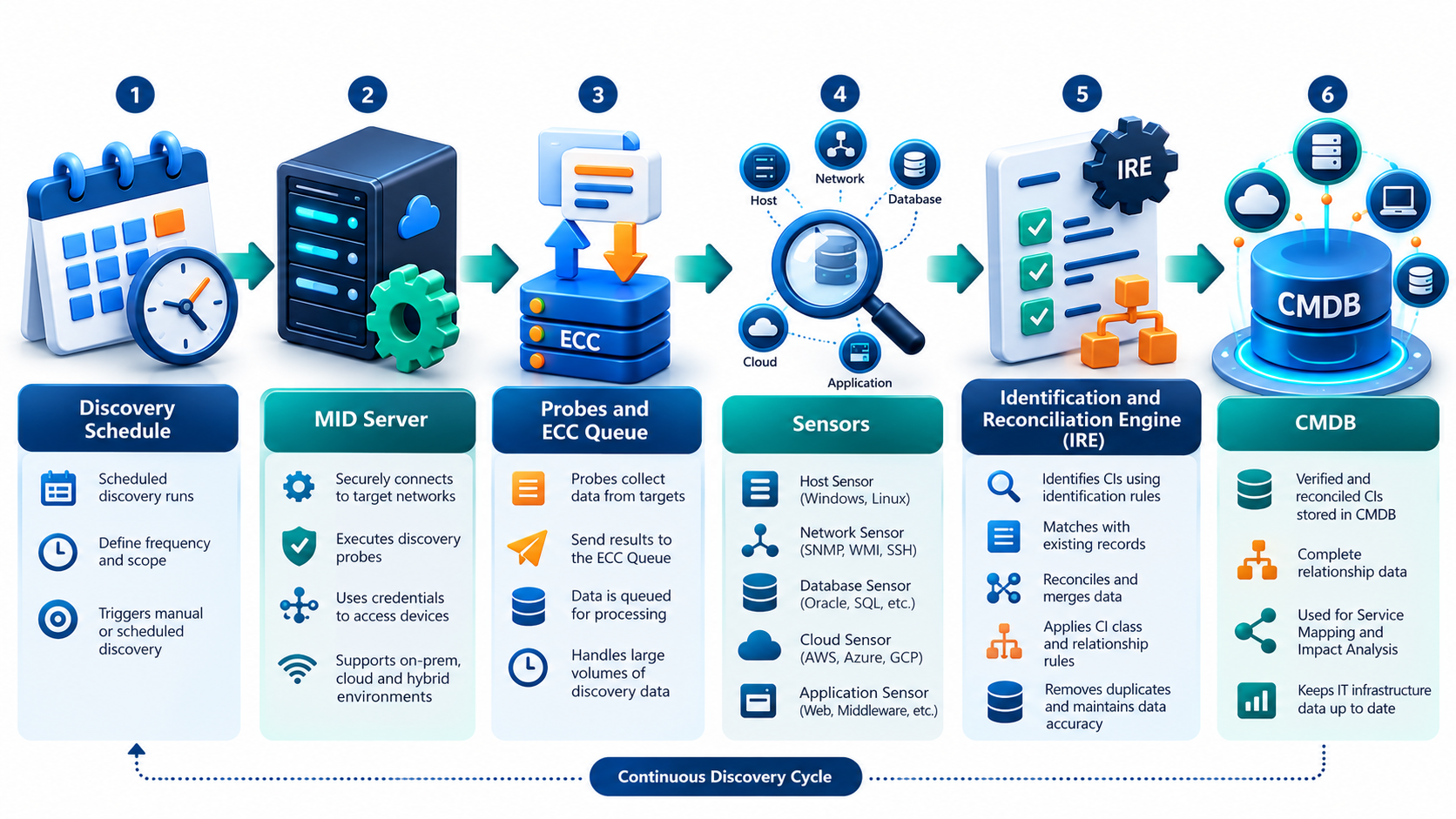
A failure can occur at any stage. The MID Server may be offline, a network port may be blocked, credentials may fail, or returned data may not update the expected CI.
Effective troubleshooting means identifying the failed stage, reviewing the available evidence, and correcting the underlying cause before running Discovery again.
4 Quick Checks Before You Troubleshoot
Before changing configurations, perform these four checks:
MID Server status: Confirm that the MID Server is running and reports Up and Validated, as applicable.
Discovery Log and ECC Queue: Look for failed activities, pending requests, missing responses, or processing delays.
Credentials: Verify the credential type, authentication details, ordering, permissions, and availability to the selected MID Server.
Network and firewall: Test connectivity from the MID Server host to the target, including the ports required by the Discovery protocol.
6 Common ServiceNow Discovery Troubleshooting Errors
1. MID Server Down or Not Responding
Symptom: The MID Server shows Down or not responding. Discovery schedules may remain pending, fail to execute, or stop receiving results.
Root cause: The service may have stopped, the agent may be unable to reach the instance, or the host may be running short of resources. Proxy issues, blocked outbound HTTPS traffic, stuck threads, and communication failures can also cause problems.
How to fix it:
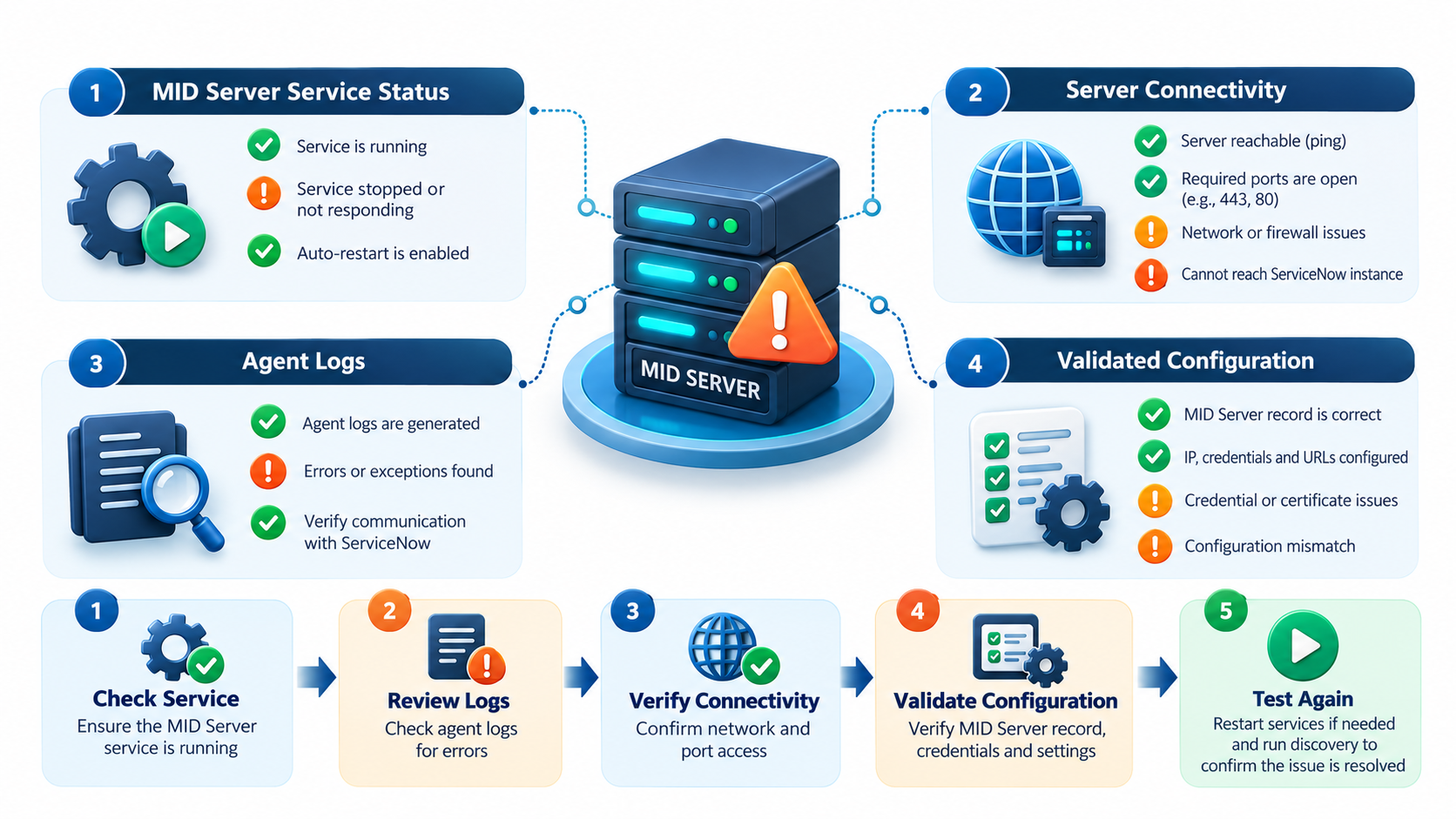
- Open the MID Server record and check its reported status and validation state.
- On the MID Server host, confirm that the service or process is running. Review the logs before deciding whether a restart is necessary.
- Inspect the agent logs for connection failures, authentication problems, repeated errors, and signs of resource exhaustion.
- Verify outbound HTTPS connectivity to the ServiceNow instance over TCP port 443. If a proxy is configured, confirm that the connection works through it.
- Check CPU, memory, disk space, and workload. Investigate stuck threads or recurring agent errors.
- After correcting the cause, restart the service if appropriate and verify that the MID Server reconnects and returns to Up and Validated.
Prevention tip: Monitor availability and resource usage. Investigate repeated communication failures instead of repeatedly restarting the service.
Interview angle — How to answer in an interview
“I check the MID Server record for status and validation, then review the service, agent logs, outbound HTTPS connectivity, proxy settings, and system resources. After fixing the root cause, I confirm that the MID Server reconnects and run a small Discovery test.”
2. Discovery Stuck in "Started" State
Symptom: A Discovery run remains in Started longer than expected, does not complete, and the expected CIs are missing.
Root cause: The instance may be waiting for MID Server work to finish, ECC Queue requests may be pending, or returned results may not have been processed. The MID Server could be overloaded or unavailable. The schedule may also be using a different MID Server than the one being investigated.
How to fix it:
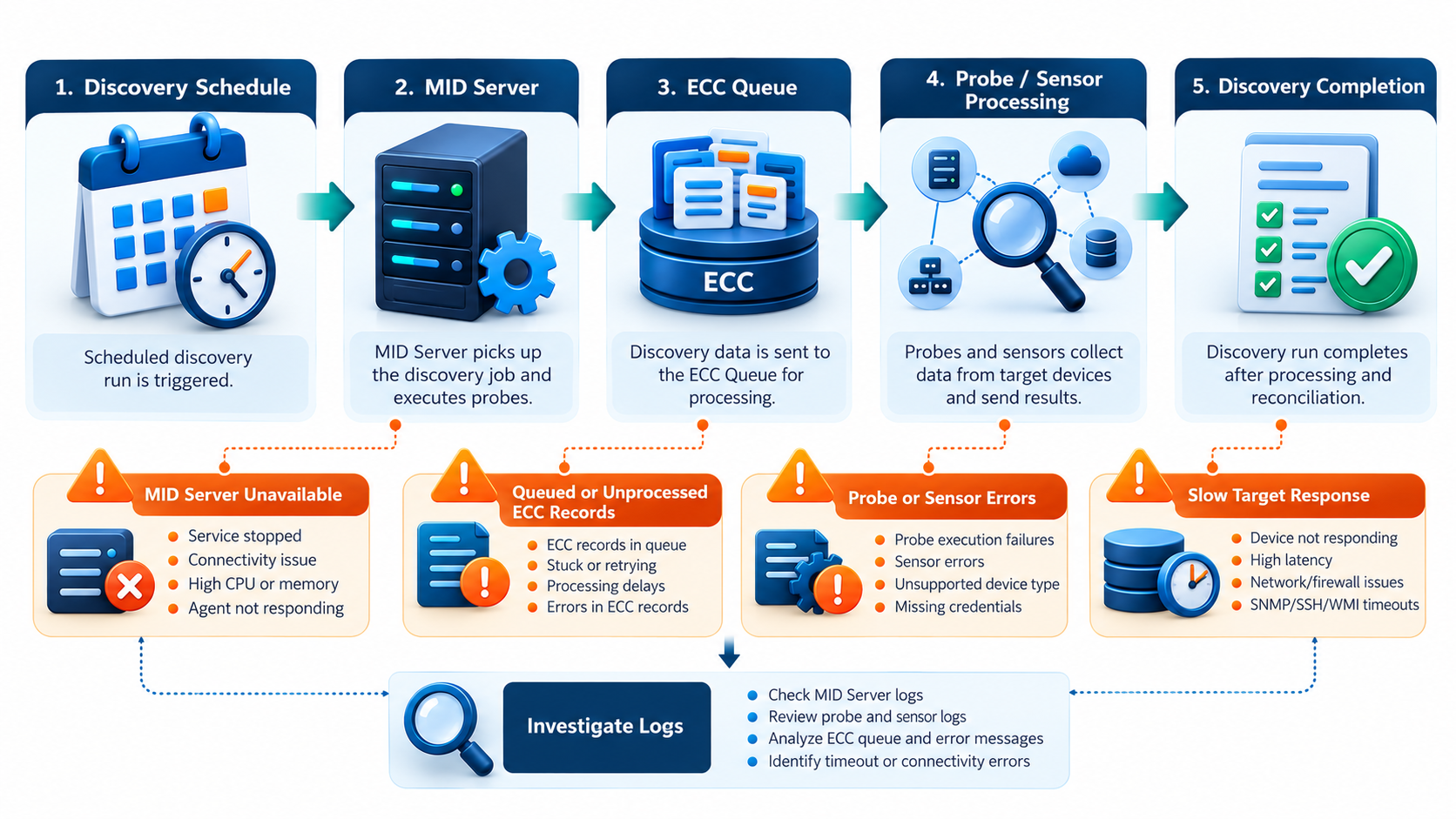
- Open the Discovery run and review its log. Identify the last completed activity and the targets that have not progressed.
- Inspect related ECC Queue input and output records. Determine whether work is waiting, a response has arrived, or an error has occurred.
- Check the selected MID Server's status, workload, and agent logs.
- Review the schedule configuration and confirm that the selected MID Server can reach the target network.
- If results have returned but the run remains open, investigate sensor processing and other instance-side delays.
- Allow active work to finish when appropriate. If the run is genuinely stuck, follow your operational procedure to cancel it and perform a controlled test after addressing the cause.
Prevention tip: Monitor long-running schedules, MID Server workload, and recurring ECC Queue delays. Do not cancel a run simply because it is taking longer than expected.
Interview angle — How to answer in an interview
“I check the Discovery log first, then the related ECC Queue records. I verify MID Server availability, schedule configuration, and whether returned results are being processed. I rerun Discovery only after identifying or isolating the cause.”
3. Credential Errors for WMI, SSH and SNMP
Symptom: Discovery reports that no credentials worked, cannot authenticate to a host, or collects only limited information.
Root cause: The username or password may be incorrect, the credential type may not match the target, or the selected MID Server may not be able to use the credential. Insufficient account permissions and incorrect SNMP community strings are also common causes.
How to fix it:
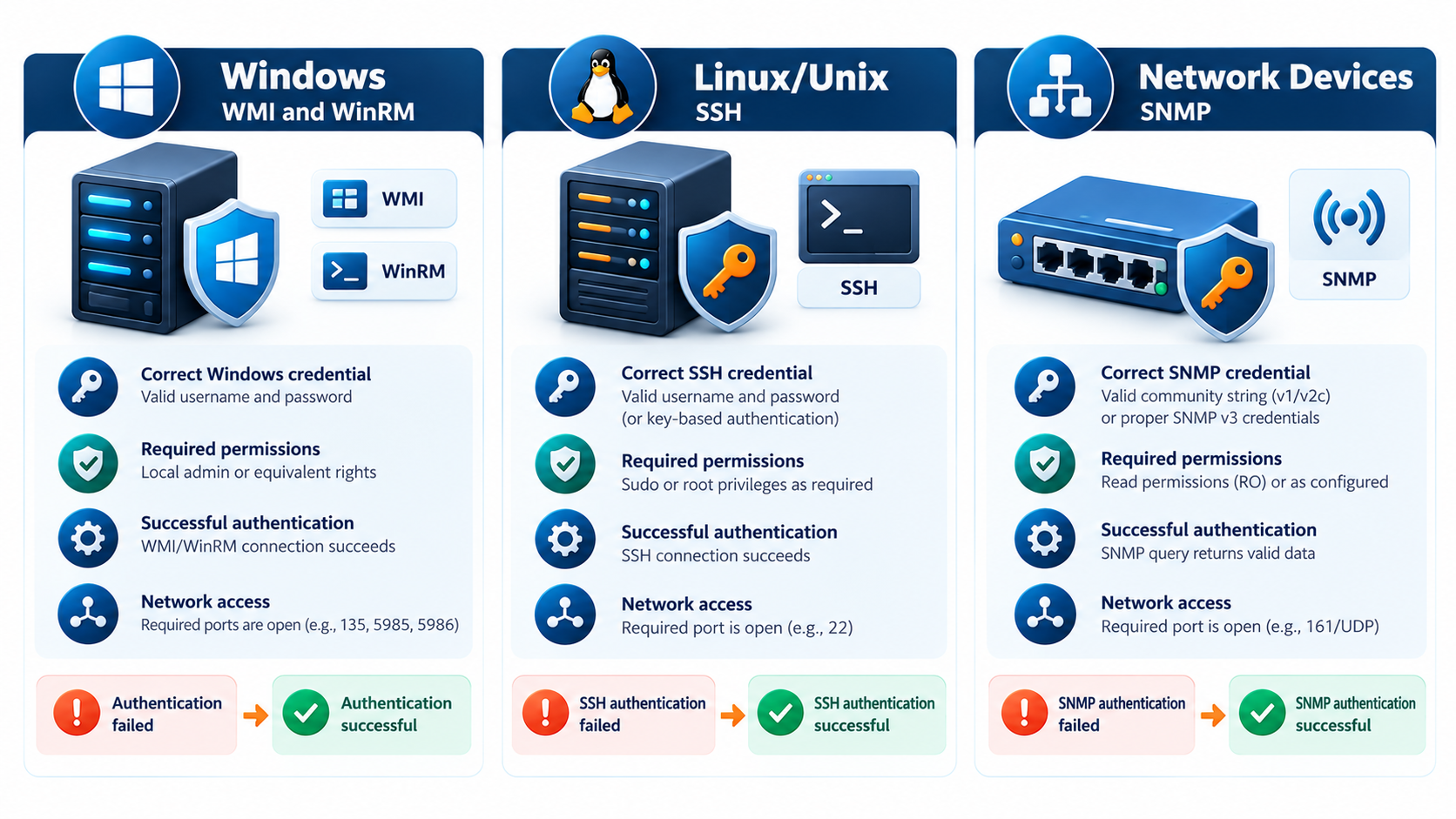
- Identify the target operating system and the protocol required for the Discovery operation.
- Locate the relevant credential record and use the available credential-testing function, if supported by your configuration.
- Review credential ordering and matching conditions to confirm that the intended credential is considered.
- Verify that the credential is available to the MID Server executing the operation.
- For Windows, check WMI/DCOM or the configured WinRM approach, including firewall access and account permissions. For Linux, verify SSH access and account privileges. For SNMP, confirm the version, community string or authentication details, and device-side access rules.
- Test connectivity and authentication from the relevant MID Server environment. Rerun a limited Discovery test and review the results.
Never expose passwords or SNMP community strings in screenshots, shared logs, or troubleshooting notes.
Prevention tip: Maintain a credential inventory, use least-privilege accounts, rotate secrets safely, and test credential changes before applying them broadly.
Interview angle — How to answer in an interview
“I identify the target and required protocol first, then test authentication and review credential order and MID Server access. For example, a Linux host may be reachable on the network but remain undiscovered because SSH authentication fails.”
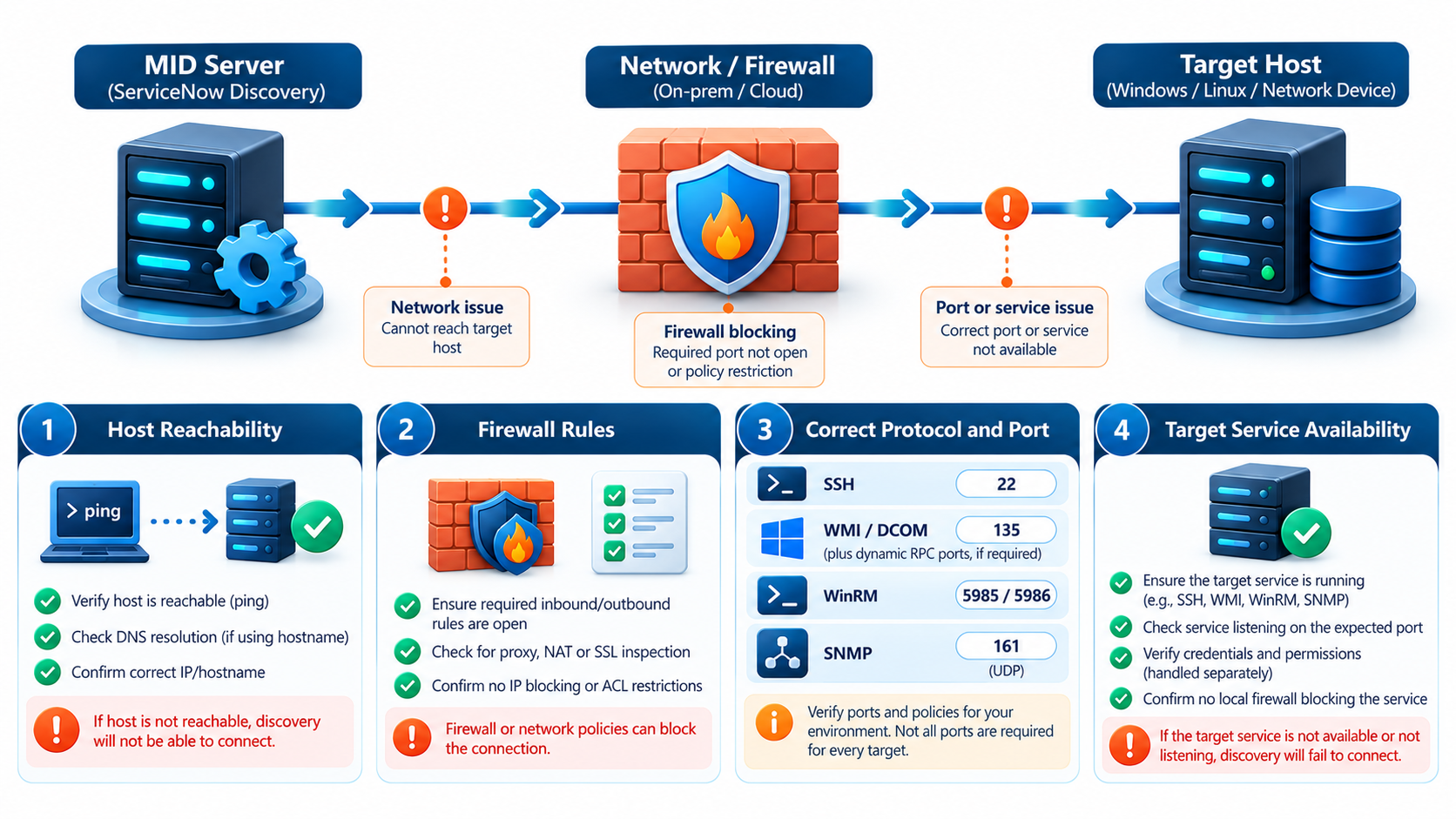
4. Host Not Reachable (No Response on Scanned Ports)
Symptom: Discovery receives no useful response from the scanned ports. The host appears unreachable even though the machine is powered on.
Root cause: Firewalls may block required ports, routing may be incorrect, or the target service may not be listening. DNS issues, network segmentation, host-based security rules, and an incorrect IP address can also cause failures.
How to fix it:
- Confirm that the target IP address or hostname is correct.
- Test connectivity from the MID Server host or an approved remote session on that host.
- Test the required protocol and port. Do not rely on ping alone because ICMP may be blocked even when application ports are accessible.
- Ask the network or system administrator to verify routing and firewall rules between the MID Server and target.
- Check that the required service is enabled and listening on the target.
- Review the Discovery log and port-scan results. Rerun Discovery after restoring connectivity.
Common ports to verify
These are common default ports, not guaranteed requirements. Actual requirements depend on the target configuration and environment.
What does Shazzam do? Shazzam is the port-scanning component used in ServiceNow Discovery. It identifies responding ports on targets, helping Discovery determine which follow-up identification or classification activities may be relevant. A port response alone does not guarantee successful authentication or complete Discovery.
Related Articles

ServiceNow
ServiceNow AI Use Cases: How AI Automates IT, HR and Customer Service
Explore ServiceNow AI use cases across IT, HR and customer service, including Now Assist, AI Agents, automation and real-world applications.

ServiceNow
How AI Is Transforming HR with ServiceNow HRSD: Key Changes, Benefits & Future Trends
Discover how AI is transforming ServiceNow HRSD, improving HR automation, employee experience, self-service, and the future of HR technology.





 +91-8882178896
 +1 (343) 477-0926