
Top 50 ServiceNow Admin Interview Questions and Answers 2026
Table of Contents
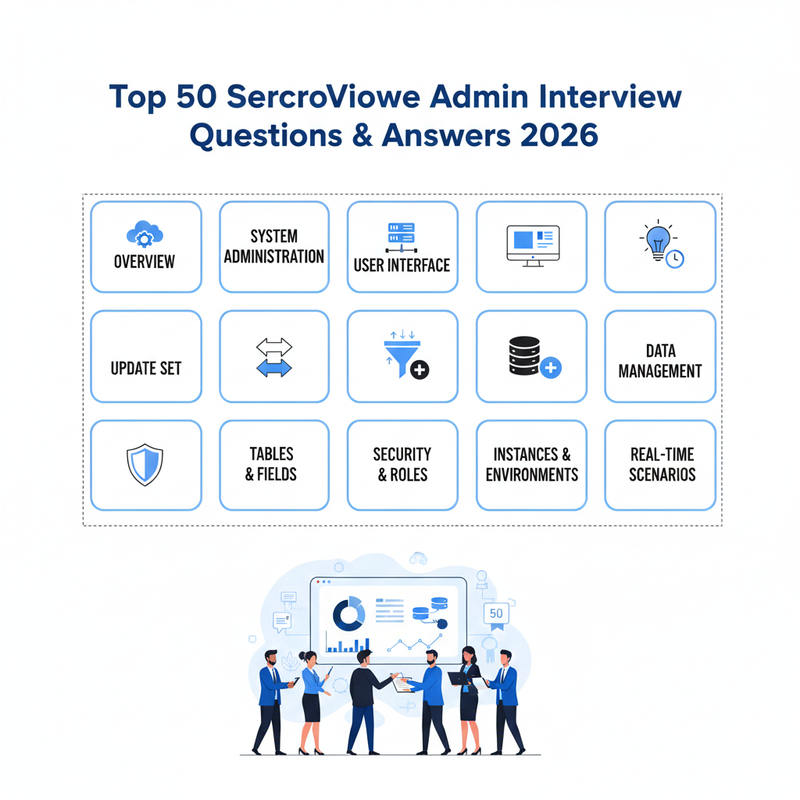
ServiceNow has become one of the leading IT Service Management platforms, widely adopted by global enterprises to streamline workflows and automate business processes. As demand for ServiceNow professionals continues to grow across industries, mastering key administrative concepts is essential for both freshers and experienced IT professionals. This guide presents the top 50 frequently asked ServiceNow Admin interview questions with detailed answers designed to strengthen conceptual understanding and real-world application skills. These questions cover core areas such as update sets, tables, UI components, security, workflows, and instance management. Whether preparing for a job interview or advancing your ServiceNow knowledge, this resource will help you build confidence and clarity in handling practical scenarios.
Top 50 ServiceNow Admin Interview Questions and Answers 2026
1. What is ServiceNow Admin?
ServiceNow Admin is a platform for developing and customizing applications, including out-of-the-box solutions like IT Service Management. It follows ITIL principles and supports modules such as HR, CSM, and incident management. The platform enables automation of workflows and processes, improving operational efficiency. Admins can also configure forms, notifications, and reports for organizational needs. ServiceNow Admin ensures centralized management of incidents, requests, and tasks. It provides scalability for growing business requirements and IT governance.
2. Who is the strong competitor of ServiceNow Admin?
The main competitor of ServiceNow Admin is BMC Remedy, which dominates the IT service management and ICSM tool market with its enterprise solutions. Both platforms focus on process automation and ITIL compliance. BMC Remedy offers similar modules for service management, IT operations, and workflow automation. Choosing between the two often depends on organizational requirements, scalability, and integration needs. ServiceNow tends to be preferred for its modern cloud-first approach. Remedy remains strong in legacy on-premise environments.
3. How can users customise applications in ServiceNow Admin?
Users can customize applications by modifying objects, workflows, and forms based on their roles, enabling tailored functionality for specific business processes. Customization includes creating new fields, scripts, and business rules. Users can also define notifications and approvals to match organizational policies. Personalizing dashboards and reports ensures actionable insights for team members. The platform allows safe testing in development instances before production deployment. Customization enhances productivity and user experience.
4. What is the latest version of ServiceNow Admin?
The latest versions of ServiceNow Admin are named after cities like Jakarta, Orlando, Paris, and Cuba, with incremental releases providing updated features and security improvements. Each version adds enhancements in performance, reporting, and workflow automation. They also include bug fixes and compatibility improvements for integrations. Admins benefit from improved UI and more responsive mobile experiences. Regular version updates ensure adherence to compliance and ITIL standards. Organizations can plan upgrades strategically to minimize downtime.
5. How do users log in to ServiceNow Admin?
Users log in using their username, email, and password, and after registration, they receive an email with credentials and a personal ID to access the platform. Multi-factor authentication can also be enabled for security. The login process allows role-based access control for users and administrators. Once logged in, users can access modules, dashboards, and applications based on assigned roles. Session management ensures activity tracking and compliance. The platform provides secure cloud access across devices.
6. What are the benefits of ServiceNow Admin being a cloud-based solution?
Being cloud-based allows users to access, configure, and manage instances from anywhere, reduces infrastructure costs, and provides automatic updates and scalable resources. Cloud hosting improves data security, backup, and disaster recovery. It ensures faster deployment of new modules and workflows. Users can collaborate in real-time across locations. Maintenance and patch management are handled centrally. Cloud-based access supports mobility and remote work efficiently.
7. How can non-admin users customise their features in ServiceNow?
Non-admin users can change the interface appearance using the “System” or “Instance” theme, adjusting colors and layout without affecting core system forms or administrative settings. They can personalize dashboards and shortcuts to optimize workflow. This allows improved navigation and task management. Non-admin users can set preferences for notifications and reports. Personal views do not interfere with system-wide configurations. Customization helps users adapt the interface to their specific needs.
8. What are the available UIs for ServiceNow?
ServiceNow offers UI 15 and UI 16, allowing users to select the interface that suits their preference, with UI 16 providing a more modern and user-friendly experience. UI 16 includes responsive layouts, improved navigation, and enhanced mobile support. UI 15 is maintained for backward compatibility in older instances. Users can switch between UIs based on comfort and project requirements. The newer interface enhances productivity through intuitive design. Administrators can also customize the UI for organizational branding.
9. What is the purpose of the impersonation feature in ServiceNow?
The impersonation feature lets administrators log in as other users without a password, enabling testing of access controls, troubleshooting, and validating user-specific settings. It helps verify workflows, approvals, and notifications from the user’s perspective. This ensures that roles and permissions are correctly configured. Impersonation also supports training and demonstration purposes. The feature prevents the need to request user credentials. It ensures compliance and avoids unnecessary errors in testing.
10. How do administrators create a new user in ServiceNow?
Administrators create users by navigating to the “Users” section, entering required information such as name, role, and contact details, and assigning appropriate permissions. They can set passwords, define group membership, and allocate roles based on responsibilities. Users can be provisioned with access to specific modules and applications. Automated workflows can handle approvals for new accounts. Administrators can also set security restrictions and data access policies. Regular audits ensure only authorized access is maintained.
11. How can users customise their forms in ServiceNow?
Users can edit and save forms to reflect personal preferences, reorganize fields, and adjust settings, with system suggestions helping to maintain consistency and accuracy. Forms can include mandatory fields, default values, and validation rules. Customizations ensure that data entry aligns with business processes. Forms can be previewed before deployment to avoid errors. Changes are often captured in update sets for version control. Efficient form management improves workflow and reporting accuracy.
12. How can an administrator change the company logo to an extension logo in ServiceNow?
Administrators can change the logo by going to System Properties, selecting a new theme like “Advantage,” uploading the desired image, and saving changes to reflect it across the platform. This enhances organizational branding within the instance. Logos can be adjusted for both light and dark themes. The change affects forms, dashboards, and header images. Administrators can also schedule updates for seasonal branding or campaigns. Consistent branding improves user recognition and professionalism.
13. What image format is used for the image in the planner, and how does it reflect in the form?
The planner uses UIF16 image format, which ensures the image aligns properly with UI elements and maintains consistent display across forms and dashboards. Images are scalable and support responsive layouts. Correct formatting prevents visual distortion and maintains clarity. Icons, buttons, and logos integrate seamlessly into forms. Admins can preview images before publishing. This ensures uniformity across user interfaces and modules.
14. How can the date format of an instance be changed, and where is this change reflected?
Date formats can be modified in the user profile settings, and changes are reflected throughout forms, reports, and dashboards within that instance. Different formats like DD/MM/YYYY or MM/DD/YYYY are supported. Changes also impact notifications and audit logs. Users can set default formats for personal convenience. Administrators can enforce standard formats organization-wide. Consistent date formatting ensures accurate reporting and analysis.
15. How can a user change any record’s date format and time zone?
Users adjust the date format and time zone through their profile settings, affecting how records, timestamps, and notifications are displayed. The change ensures accurate representation of time-sensitive tasks. It is applied across modules including incidents, requests, and tasks. Users can choose local or UTC time based on preference. This supports global teams working across multiple time zones. Proper configuration prevents scheduling conflicts and miscommunication.
16. How do the settings for a particular user affect smooth mail, and what is the default date format for all users?
User-specific settings override global settings for email and notifications, while the default system date format applies to all users unless individually modified. This ensures personalized communication. Default formats maintain consistency for reporting and auditing. Changes do not disrupt workflows for other users. Email notifications inherit the user’s preferences for language and format. Administrators can enforce mandatory formats if needed.
17. Who can customise their system settings and preferences, and what changes can they make?
All users can adjust personal settings like date format, time zone, and interface preferences, while administrators can modify broader system configurations. Users can also select themes, dashboards, and shortcuts. Administrators manage roles, permissions, and access controls. Customization improves efficiency and user experience. Settings are saved per profile to ensure consistency. It allows flexibility without compromising system integrity.
18. What aspects of the system have users learned about, and what tools are available for navigation and data filtering?
Users learn about impersonation, date formats, user profiles, and admin tools, with navigation aids like hover actions, right-click shortcuts, and filters for efficient data management. Filtering and sorting simplify large datasets. Reports and dashboards help visualize data. Users can also set bookmarks and shortcuts. These tools enhance usability and reduce manual effort. Learning these aspects improves overall productivity.
19. Can a user switch back to the administrator view after modifying their personal view, and how is this accomplished?
Yes, users can reset to the default administrator view through profile settings or by selecting the system reset option to restore original access and layout. This allows access to full modules and system settings. Switching ensures consistency for troubleshooting. Admin view restores all navigation elements and workflows. Users can toggle easily without losing saved data. This flexibility supports role-based testing and review.
20. What is the confusion around the default view and the difference between what the administrator sets and the user sets?
Confusion arises because administrators set default views, but users can customize their personal view, leading to different display layouts for the same tables or forms. Users may see additional shortcuts or reordered fields. Admins maintain control over system functionality. Differences are resolved using update sets or profile resets. Proper communication avoids mismatches in workflows. Understanding this distinction helps reduce errors and training gaps.
21. How are changes promoted to the live environment in an organisation with five developers assigned to specific tasks?
Developers work in separate development instances to avoid conflicts and ensure focused work on their assigned tasks. Changes are first tested in the UAT or staging environment to validate functionality and workflow accuracy. Once approved by the test team, changes are promoted to the live environment using update sets. Collaboration among developers ensures dependencies are managed properly. Version control helps track modifications and reduces errors. This structured approach ensures smooth deployment without disrupting ongoing operations.
22. What is the purpose of the update set feature in ServiceNow admin, and how is it used?
Update sets track configuration changes, enabling developers to move modifications between instances systematically. They capture changes such as workflows, forms, fields, and scripts. Update sets also ensure version control, allowing rollback if needed. They support collaboration between multiple developers by isolating work in separate sets. Update sets prevent overwriting or loss of critical changes. This ensures consistency, accuracy, and safe deployment across environments.
23. What is the global application in ServiceNow admin, and how is it used?
The global application lists all applications within a ServiceNow instance, giving administrators visibility of deployed modules. It allows management, monitoring, and access control across applications. Admins can track dependencies and assess the impact of changes. It helps coordinate updates between different teams and instances. Global applications also provide insight into system-wide configurations. This ensures structured administration and governance of the platform.
24. How has the scope changed for creating an update set, and what is the importance of this change?
The scope for update sets has shifted from global to local, emphasizing application-specific modifications. This reduces conflicts and makes deployments more modular. Local scope ensures changes are tied to relevant applications rather than affecting unrelated modules. It allows better collaboration between multiple developers. Testing and promotion of updates become more controlled. Overall, it improves governance, accuracy, and maintainability.
25. How can a user select and modify a record in the system?
A user can select a record from a table or list view and open it for modification. Fields can be edited, and labels or values can be updated based on permissions. Managers or administrators can request additional modifications for workflow compliance. Changes are saved and tracked to ensure auditing. The platform allows validation rules to prevent incorrect entries. This process ensures data integrity while maintaining flexibility for operational updates.
26. How are labels and dictionary values configured in the system?
Labels define the display name of fields for users, while dictionary values manage the type, choices, and behavior of the field. Administrators can configure dictionaries to include validation rules and default values. Proper configuration ensures data consistency and integrity. Multiple options can be added for dropdowns or reference fields. Changes can be tracked via update sets to manage deployment. This system provides flexibility in building structured and usable forms.
27. How is a dropdown field created with different values?
A dropdown field is created by selecting the field type as “Choice” or “Reference” and then adding values through the dictionary. Values can be added individually or in bulk. Administrators can also set default values or dependencies between fields. Choices can be grouped for better usability and organization. Validation rules ensure correct selection. Dropdown fields enhance structured data entry and user efficiency.
28. What common field types are used by users when working on services?
Common field types include string, integer, currency, date, datetime, choice, and reference fields. Choice fields provide predefined options, while reference fields link to other tables. Date and datetime fields ensure accurate scheduling and timestamps. Numeric fields are used for calculations or metrics. Proper field type selection improves workflow accuracy. Field types ensure consistency and reliability across records and reports.
29. How can a field be deleted from the system?
Fields can be deleted directly from the table or form configuration. Admins must ensure no dependent workflows, scripts, or reports rely on the field. Deleting a field removes it from all associated records and interfaces. Update sets can capture these changes for safe deployment. Proper review prevents accidental data loss. This ensures system cleanliness and maintainability.
30. How is a table created in a database, and how is a field deleted from a table?
Tables are created through the system definition module by specifying the table name, fields, and attributes. Permissions and access controls are assigned for security. Fields can be added or deleted as requirements change. Update sets capture these modifications for deployment. Testing ensures data integrity before production use. This allows scalable and structured database management.
31. What is the main focus of the described data conversion process?
The data conversion process focuses on transferring data from external sources like Excel into ServiceNow while maintaining data integrity. Fields are mapped, formats standardized, and validation rules applied. This ensures compatibility with existing tables and workflows. Accurate conversion prevents duplicate records or incorrect entries. Auditing and review are performed post-conversion. Efficient data conversion supports smooth operational continuity.
32. What are some potential issues with the system during the conversion process?
Issues may include duplicate records, invalid data formats, missing mandatory fields, or broken references. Misalignment of field types or improper mapping can disrupt workflows. Large datasets may also slow down conversion. Validation scripts and checks are necessary to prevent errors. Proper testing ensures system stability. Effective planning mitigates operational risks during migration.
33. What is suggested to avoid creating duplicate records?
To avoid duplicates, unique keys like product ID or email are used to match existing records. Existing entries are updated rather than creating new ones. Validation rules and scripts can enforce uniqueness. Deduplication tools can help during bulk imports. Review and testing of data prevent conflicts. Maintaining clean data ensures system reliability and accurate reporting.
34. What is the importance of changing the binary image?
Binary images, such as logos or icons, ensure the visual interface is clear and consistent. Updating images maintains branding and reflects organizational identity. Proper formats prevent distortion across dashboards and forms. Binary images support accessibility and responsiveness in UI. Admins can schedule updates for branding changes. Correct image management enhances user experience and professionalism.
35. What is the difference between UI 16 and UI 15, and which should users prefer?
UI 16 is more modern, responsive, and user-friendly compared to UI 15. It includes improved navigation, dashboards, and mobile compatibility. UI 15 is older and maintained for backward compatibility. Users prefer UI 16 for efficiency and better visual presentation. Custom themes and branding are easier in UI 16. Overall, it enhances productivity and user satisfaction.
36. Why is it important to know the service version used?
Knowing the version helps troubleshoot issues and identify feature availability. Different versions may have variations in workflows, UI, or API behavior. It ensures scripts and integrations work correctly. Administrators can plan upgrades and patches efficiently. Compatibility with plugins depends on the version. This awareness supports smooth system operation and governance.
37. What is the purpose of ServiceNow in creating an update set?
ServiceNow allows developers to capture configuration changes, including workflows, fields, scripts, and dashboards. Update sets make it easier to deploy modifications across instances safely. They also track changes and maintain version history. Update sets prevent overwriting unrelated configurations. Collaboration among developers is improved. They are crucial for structured and reliable deployments.
38. How can a new table be created in the Swap Man application?
A new table can be defined under the application scope and fields assigned with proper types. Access controls and roles are configured for security. Relationships to other tables can be established for structured data. Update sets capture these changes for deployment to other instances. Testing ensures proper functionality before production use. This allows modular development within the platform.
39. How can a parent or relationship be created for updates in ServiceNow?
Relationships are created by defining reference fields linking child tables to parent tables. This supports hierarchy, dependencies, and workflow management. Parent-child relationships allow roll-up reporting and structured data access. Permissions can control who can modify related records. Update sets capture these relationships for safe deployment. Proper design ensures data integrity and operational efficiency.
40. How are tables created in the system definition in ServiceNow?
Tables are created in the system definition module, fields are added with appropriate types, and access permissions are assigned. Relationships and dependencies are defined for accurate data modeling. Update sets track changes for migration to other instances. Testing ensures the table works correctly in workflows. Naming conventions and standards maintain consistency. Proper table design is critical for system stability.
41. What is the primary function of ServiceNow Admin?
The primary function is to develop, configure, and manage custom or standard applications while supporting IT service workflows and automation. It also ensures adherence to ITIL standards. Admins manage roles, access controls, and system-wide settings. Automation of processes improves operational efficiency. Reporting and dashboards provide actionable insights. Overall, it centralizes IT and business process management.
42. Who is a strong competitor of ServiceNow Admin?
BMC Remedy is the key competitor, offering similar IT service management and workflow automation solutions. Both platforms follow ITIL principles. BMC Remedy is preferred in legacy on-premise environments. ServiceNow is cloud-focused and modern in approach. Decision depends on organizational requirements. Integration and scalability also influence choice.
43. What applications are offered by ServiceNow Admin besides ICSM?
ServiceNow offers HR, CSM, ITSM, ITOM, and workflow automation applications beyond traditional ICSM modules. These modules enhance operational efficiency. Automation reduces manual tasks and improves data accuracy. Analytics and reporting are embedded across applications. Integration with third-party tools is supported. Users gain centralized control over multiple processes.
44. How do users access their instance after signing up on ServiceNow Admin?
Users access their instance using their username, password, and personal ID received during registration. Role-based access controls determine permissions. Multi-factor authentication may also be required. Access can be via browser or mobile. Sessions are tracked for security and compliance. Admins manage account activation and deactivation.
45. What is the latest version of ServiceNow Admin named after?
The latest versions are named after cities, including Jakarta, Orlando, Paris, and Cuba. Each version introduces new features, improvements, and security patches. Incremental releases enhance performance and usability. Admins plan upgrades to leverage new functionality. Versions maintain compatibility with plugins and scripts. Naming conventions help identify release timelines and scope.
46. How do users request and release instances in ServiceNow Admin?
Users request and release instances directly through the cloud interface without needing separate infrastructure. Requests can be automated or approved via workflow. Admins monitor usage and allocate resources. Instances can be provisioned for development, testing, or production. Cloud access supports collaboration and scalability. Instance management ensures system stability.
47. What is the role of the user interface in ServiceNow?
The UI allows navigation, data entry, task management, and access to modules. It provides dashboards, forms, and reporting capabilities. Users can personalize their interface to enhance productivity. Admins can apply themes for branding. The UI supports workflow visibility and efficiency. Proper UI design improves user satisfaction and adoption.
48. What is the difference between admin and non-admin users regarding accessibility in ServiceNow?
Admins have full access to all modules, settings, and system configurations. Non-admins access modules and data based on assigned roles. Permissions control read/write/edit capabilities. Admins can perform maintenance, updates, and system-wide configurations. Role segregation ensures security and governance. Clear distinction prevents unauthorized access to critical functions.
49. How can users change the appearance and colours of the ServiceNow interface?
Users can modify themes, colors, and layouts using “System” or “Instance” options. Personalization improves visibility and efficiency. Changes do not affect core system settings or workflows. Admins can enforce organizational branding if needed. Updates are reflected across dashboards and forms. Customization enhances user comfort and experience.
50. What was the initial user interface available for ServiceNow users?
The initial interface was UI 15, offering basic navigation and functionality. UI 16 introduced a modern, responsive design. UI 15 remains for backward compatibility. Users prefer UI 16 for improved usability, mobile responsiveness, and dashboard enhancements. Legacy features were maintained for continuity. The transition supports better workflows and user satisfaction.
Conclusion
ServiceNow Admin roles require a solid understanding of platform configuration, customization, data management, and workflow automation. By reviewing these top 50 questions and answers, candidates can strengthen both theoretical knowledge and hands-on problem-solving capabilities. Continuous learning, real-time practice, and staying updated with new version releases are key to success in this evolving domain. With strong fundamentals and exposure to real business use cases, professionals can unlock attractive career opportunities in global organizations. Stay committed to learning, keep practicing, and success in your ServiceNow career journey will follow.